### -----------------------------------------------------------------
### Written by Matt Brown
###
### Description: This Grabs a list of all the Domain Controllers and tries to connect to them via SSL over Port 636
###
### -----------------------------------------------------------------

$DCList = @(
"dc1.domain.com",
"dc2.domain.com",
"dc3.domain.com",
"dc4.domain.com",
"domain.com"
)

$DCList | foreach {
 $DC = $_
 $LDAPS = [ADSI]"LDAP://$($DC):636"
 try {
  $Connection = [adsi]($LDAPS)
 } Catch {
 }
 if ($Connection.Path) {
  Write-Host "Active Directory server correctly configured for SSL, test connection to $($LDAPS.Path) completed." -foregroundcolor Green
 } else {
  Write-Host "Active Directory server not configured for SSL, test connection to LDAP://$($DC):636 did not work." -ForegroundColor Yellow
 }
}
Showing posts with label Powershell. Show all posts
Showing posts with label Powershell. Show all posts
Wednesday, November 12, 2014
Powershell: Test Domain Controller Certificates
When replacing Domain Controller certificates for Active Directory with a valid 3rd party certificate I use this script to quickly test my domain and all my domain controllers directly to make sure they are serving out the certificate.


Monday, November 10, 2014
PowerShell: Add Computer to Domain directly to OU
Here's a PowerShell script to add computers to the Domain to a specific OU (Organizational Unit) and allows you to select the OU Location. I did not use the AD modules as they are not pre-installed on most desktops, even though it would of been much easier to write with them.
### -----------------------------------------------------------------
### Written by Matt Brown
### - http://universitytechnology.blogspot.com/
### PowerShell script to search OU Structure and add computer to domain
###
### -----------------------------------------------------------------

Param(
 $user = $(Get-Credential -Credential "domain\user"), # Prompts user for credentials
 $filter = "(objectClass=organizationalUnit)",  # Do not change
 $ouLocatoin = "LDAP://OU=Departments,DC=domain,DC=com", # Starting Organizational Unit
 $mydomain = "domain.com",    # FQDN of Domain
 $whatif = "-WhatIf"      # change to "" to actually run
)

#--------------------------------------------------------------------
Function GetSecurePass ($SecurePassword) {
  $Ptr = [System.Runtime.InteropServices.Marshal]::SecureStringToCoTaskMemUnicode($SecurePassword)
  $password = [System.Runtime.InteropServices.Marshal]::PtrToStringUni($Ptr)
  [System.Runtime.InteropServices.Marshal]::ZeroFreeCoTaskMemUnicode($Ptr)
  $password
}
#--------------------------------------------------------------------
Function AddTabs($mystring,[int]$numtabs=5) {
 for([int]$len = (([string]$mystring).length / 8.9); $len -lt $numtabs; $len++) { $mystring += "`t" }
 return $mystring
}
#--------------------------------------------------------------------
Function SelectOU($dn,$up) {

 Clear-Host
 Write-Host "### -----------------------------------------------------------------" -ForegroundColor Green
 Write-Host "### Select OU and Add Computer to Domain                             " -ForegroundColor Green
 Write-Host "### Written by Matt Brown                                            " -ForegroundColor Green
 Write-Host "###  - http://universitytechnology.blogspot.com/                     " -ForegroundColor Green
 Write-Host "### PowerShell v.2 (Windows 7 / Server 2008 R2)                      " -ForegroundColor Green
 Write-Host "### -----------------------------------------------------------------" -ForegroundColor Green
 Write-Host "`nThe Number in the Select column adds the computer to the OU, where the List column will list Sub-OU's of the OU." -ForegroundColor Green
 Write-Host $dn
 Write-Host $up
 Write-Host "`n"
 Write-Host ("List Of " + (([string]$dn).split("/"))[2]) -ForegroundColor Yellow
 Write-Host " Select  List`tOU"
 Write-Host " ----------------------------------------------------"
 Write-Host "   0`t  L0   <- Up a Level"
 #$ou = Get-ADOrganizationalUnit -SearchBase $dn -SearchScope OneLevel -Filter 'Name -like "*"'

 $auth = [System.DirectoryServices.AuthenticationTypes]::FastBind
 $de = New-Object System.DirectoryServices.DirectoryEntry($dn,$user.UserName,(GetSecurePass $user.Password),$auth)
 $ds = New-Object system.DirectoryServices.DirectorySearcher($de,$filter)
 $ds.SearchScope = "OneLevel"
 $ou=($ds.Findall()) | Sort-Object -Property Name
 $sel = $null
 $selectList = @("0","L0","C")

 for($x=1; $ou.count -ge $x; $x++) {
  # output line, decide if it needs to be in yellow or white
  $selectList += $x
  $selectList += ("L"+$x)
  $outname = (AddTabs ($ou[$x-1].Properties['name']))
  $lineout = ("   " + $x + "`t  " + ("L"+$x) + "`t" + $outname)
  if($x % 2 -eq 0) {
   Write-Host $lineout -BackgroundColor White -ForegroundColor Black
  } else {
   Write-Host $lineout -BackgroundColor Gray -ForegroundColor Black
  }
 }
 Write-Host "   C`t  C    -- Cancel & Exit"
 Write-Host "`n"
 while($selectList -notcontains $sel) {
  $sel = Read-Host "   Select OU or List Sub-OUs"
 }

 ## Figure out what the user selected
 if ( $sel[0] -eq "L") {
  ## Users Selected List Mode
  $y = ($sel.split("Ll")[1])
  if([int]$y -eq 0) {
   $newup = ("LDAP://" + ($up -replace (($up -split ",")[0] + ",")))
   SelectOU $up $newup
  } else {
   SelectOU $ou[$y-1].Properties['adspath'] $dn
  }
 } elseif ($sel -eq "c") {
  ## User Selected Cancel
  return $false
 } else {
  ## User Selected the OU
  if([int]$sel -eq 0) {
   return ([string]$dn).split("//")[2]
  } elseif([int]$sel -le [int]$ou.count)  {
   return $ou[$sel-1].Properties['distinguishedname']
  } else {
   SelectOU $dn $up
  }

 }
}
#--------------------------------------------------------------------

#--------------------------------------------------------------------
## Main
#--------------------------------------------------------------------

## Select / View OU
while($ou = (SelectOU $ouLocatoin $ouLocatoin)) {
 ## Add to Domain
 Write-Host ("  Will add computer (" + $env:computername + ") to:") -ForegroundColor Yellow
 Write-Host ("    " + $ou + "`n") -ForegroundColor Green
 $continue = Read-Host "  Continue (y | n)"
 if($continue -eq "y") {
  ## Now Add the Computer to the Domain
  add-computer -domainname $mydomain -OUPath $ou -Credential $user $whatif
  break
 }
}
Friday, November 7, 2014
Powershell: Test VMWare Host Networks
Here's a handy script I use to verify networks on my VMWare Clusters. This script takes a test VM and changes the Network and IP Address from a list, then does a simple ping from the VM on each host to let you know your networks are working correctly before moving Production Machines to it. The need for this spawned from a missing "allowed vLan id" not being configured across the ether channel ports on one of the hosts.
### -----------------------------------------------------------------
### Written by Matt Brown
###
### Description: Test VMWare Host Networks
###
### Requires:
###   VMWare Snapin
###   Test VM with a Local Admin Account, may need to turn UAC Off
###   CSV File with Network Info
###
### Sample CSV File:
###     Name,VLanId,ip,netmask,gateway
###     VM-Subnet01,21,192.168.3.5,255.255.255.0,192.168.3.1
###     VM-Subnet02,22,192.168.4.5,255.255.255.0,192.168.3.5
### -----------------------------------------------------------------

## Load VMWare Snapin
if(-not (Get-PSSnapin | where { $_.Name -match 'VMware.VimAutomation.Core' })) {
 Add-PSsnapin VMware.VimAutomation.Core
}

## Vars to Configure
$vCenterServer = "VC.domain.com"
$clusterToTest = "ProductionCluster"
$TestMachine = "TestVM"
$vmnicname = "Local Area Connection"
$NetworkListFile = "VMNetworkTestList.csv"


function TestNetwork($currenthost,$newhost,$vm,$gateway,$guestCred) {

 if($currenthost -notmatch $newhost) {
  Write-Host ("Moving $TestMachine to " + $_.Name) -ForegroundColor Cyan
  $VM | Move-VM -Destination $_.Name | Out-Null
 }
 $script = ("ping " + $gateway)
 Write-Host $script -ForegroundColor Yellow
 $pingtest = Invoke-VMScript -VM $vm -ScriptText $script -scriptType bat -Credential $guestCred
 if($pingtest.ScriptOutput -match "(0% loss)") { Write-Host "Test Success" -ForegroundColor Green } else { $pingtest.ScriptOutput }
 #$continue = Read-Host "Hit Enter to Test on Next Host."
 return $newhost
}

## Connect to vCenter and grab information
Connect-VIServer -Server $vCenterServer -credential (Get-Credential -Message ("vCenter Account"))
$hosts = Get-VMHost -Location $clusterToTest | select Name
$VM = get-vm -name $TestMachine
$currenthost = $vm.VMHost.Name

$guestCred = Get-Credential -UserName ($TestMachine + "\") -Message "Local Admin Account"

$NetworksToTest = Import-Csv $NetworkListFile
$NetworksToTest | foreach {
 $NetworkName = $_.Name
 $IP = $_.ip
 $gateway = $_.gateway
 $netmask = $_.netmask

 Write-Host "Changing Network on $TestMachine to $NetworkName" -ForegroundColor Cyan
 Get-NetworkAdapter -VM $vm | Set-NetworkAdapter -NetworkName $NetworkName -Confirm:$false | Out-Null
 #$continue = Read-Host "Hit Enter to Set the IP Address."

 Write-Host "Changing IP Address on $TestMachine to $IP" -ForegroundColor Cyan
 $VM | Get-VMGuestNetworkInterface -GuestCredential $guestCred | Where-Object { $_.Name -eq $vmnicname } | Set-VMGuestNetworkInterface -GuestCredential $guestCred -Ip $IP -Netmask $netmask -Gateway $gateway | Out-Null
 #$continue = Read-Host "Hit Enter to Run Ping Tests."

 $x = @()
 $hosts | where { $_ -notmatch $currenthost } | foreach { $x += $_.Name }
 $currenthost = TestNetwork $currenthost $currenthost $vm $gateway $guestCred
 $hosts | foreach {
  $currenthost = TestNetwork $currenthost $_ $vm $gateway $guestCred
 }
}
Wednesday, November 5, 2014
Powershell: Get AD Users from Group with Email Address
Here's a handy script I use to Generate a list of all "Users" with email addresses within a group. It's a recursive function so it will dig through nested groups to make sure all users are picked up. It does not do checking for duplicates as I normally just open the output in Excel and run the Remove Duplicates command.
### -----------------------------------------------------------------
### Written by Matt Brown
###
### Description: Get Username / Email from All Users in AD Group
###
### Requires: ActiveDirectory Module
### -----------------------------------------------------------------

Import-Module ActiveDirectory
$group = "Employees"
$outfile = ("c:\" + $group + "_output.csv")

function RecurseMyGroup($group,$outfile) {

 Write-Host ("Checking Group " + $group)
 (Get-ADGroup $group -properties members).members | foreach {
  $object = Get-ADObject $_ -Properties mail,samaccountname
  if($object.objectClass -eq "Group") {
   RecurseMyGroup $object.DistinguishedName $outfile
  } else {
   ($object.samaccountname + "," + $object.mail) | Out-File -FilePath $outfile -Append
  }
 }

}

RecurseMyGroup $group $outfile
Monday, November 3, 2014
Powershell: VMWare Snapshot Report
Here's a handy script I use to send me a report on all VM's in my VMWare Environment with active snapshots. This script finds all VM's with Snapshots, creates an HTML report and emails the info to the provided list. I schedule this to run via the Task Manager automatically every week.
### -----------------------------------------------------------------
### Written by Matt Brown
###
### Description: Powershell script grabs a list of snapshots from the
### VMWare Enviornment and emails them out as a report.
###
### Requires: VMWare Powershell Extenstions
### -----------------------------------------------------------------
$thedate = Get-Date -f yyyy-MM-dd_HH-mm
$scriptname = "VMWareSnapshots.ps1"
$scriptlocation = "C:\Scripts\VMWare\"
$filename = $scriptlocation + "Transcripts\" + $thedate + "_Snapshots.rtf"
start-transcript -path $filename
$htmlOutFile = "C:\Scripts\VMWare\Reports\snapshot_list.htm"
$vCenterServer = "VC.domain.com"
$vCenterLocation = "ProductionCluster"
### Load VMWare Snapin
Add-PSSnapin -Name VMware.VimAutomation.Core
### -----------------------------------------------------------------
### Start Functions
### -----------------------------------------------------------------
function SendEmail($body,$subject=("Script ERROR: " + $scriptname + " on " + ($env:COMPUTERNAME)),$to=@("admin@domain.com"),$attFile=$false) {
$message = New-Object System.Net.Mail.MailMessage
if($attFile) {
$attachement = New-Object System.Net.Mail.Attachment($attFile)
$message.Attachments.Add($attachement)
$message.Headers.Add("message-id", "<3BD50098E401463AA228377848493927-1>") # Adding a Bell Icon for Outlook users
}
$message.From = "admin@domain.com"
$to | foreach {
$message.To.Add($_) # default is admin in function
}
$message.Subject = $subject
$bodyh = "----------------------------------------------------------------------------------------------------`n"
$bodyh += "Server: " + ($env:COMPUTERNAME) + "`n"
$bodyh += "User: " + ($env:USERDOMAIN) + "\" + ($env:USERNAME) + "`n"
$bodyh += "Location: " + $scriptlocation + $scriptname + "`n"
$bodyh += "----------------------------------------------------------------------------------------------------`n`n"
$message.Body = $bodyh + $body
$smtp = New-Object System.net.Mail.SmtpClient
$smtp.Host = "smtpserver.domain.com"
$smtp.UseDefaultCredentials = $true
$smtp.Send($message)
}
### -----------------------------------------------------------------
Connect-VIServer $vCenterServer
# HTML/CSS style for the output file
$head = ""
$title = ($vCenterLocation + " VMWare Snapshots as of ” + (get-date -Format "MM-dd-yyyy"))
$data = @()
Get-VM -Location $vCenterLocation | foreach {
$snapshots = Get-SnapShot -VM $_
if ($snapshots.Name.Length -ige 1 -or $snapshots.length){
ForEach ($snapshot in $snapshots){
$myObj = "" | Select-Object VM, Snapshot, Created, Description
$myObj.VM = $_.name
$myObj.Snapshot = $snapshot.name
$myObj.Created = $snapshot.created
$myObj.Description = $snapshot.description
$data += $myObj
}
}
}
# Write the output to an HTML file
$data | Sort-Object VM | ConvertTo-HTML -Head $head -Body (""+$title+"
") | Out-File $htmlOutFile
SendEmail ("See Attached VMWare Snapshot Report") $title (@("joe@domain.com","fred@domain.com")) $htmlOutFile
DisConnect-VIServer -Confirm:$false
stop-transcript
Tuesday, November 16, 2010
Powershell: Update Timezone Region for Outlook.com Live@Edu Accounts
Here's a quick script to update the Timezone and Language of all your Outlook Live Accounts using remote powershell.
### -----------------------------------------------------------------
### Written by Matt Brown - 11/16/2010
###
### Powershell script requires a csv text file in the following Format:
###  > email
###  > address1@domain.com
###     > user2@domain.com
### -----------------------------------------------------------------

## Setup Vars
$ImportFile = "C:\live-email-list.csv"
$Language = "en-US"
$Timezone = "Pacific Standard Time"
$DateFormat = "M/d/yyyy"
$TimeFormat = "h:mm tt"

## get the email accounts to change
$EmailAccounts = import-csv $ImportFile
Write-Host " Accounts Found in CSV File" $EmailsToCheck.Length

if($EmailsToCheck.Length -gt 0) {
  ## Setup Outlook Session Session and modify accounts
  $LiveCred = Get-Credential
  $loop = 5
  while($loop -gt 0) {
    # this loops handles reconnect if connection to Live fails on first try.
    $Session = New-PSSession -ConfigurationName Microsoft.Exchange -ConnectionUri https://ps.outlook.com/powershell/ -Credential $LiveCred -Authentication Basic -AllowRedirection
    if($Session) {
      $loop = 0
      Import-PSSession $Session
      $EmailAccounts | foreach {
        $Check = Get-MailboxRegionalConfiguration $_.email
        if($Check -ne $Timezone) {
          Write-Host $_.email
          Set-MailboxRegionalConfiguration $_.email -TimeZone $Timezone -Language $Language -DateFormat $DateFormat -TimeFormat $TimeFormat
        }
      }
    } else {
      Write-Host "Session not created... trying again"
      $loop -= 1
    }
  }
}
Remove-PSSession $Session.Id
Sunday, February 28, 2010
Remove Terminated User from GAL - Powershell
Quick Powershell script to remove disabled users from the Exchange 2007 Global Address List (GAL) without deleting the account / mailbox. This uses the Quest Active Roles powershell extensions for Active Directory.
### -----------------------------------------------------------------
### Written by Matt Brown
###
### Name: Remove Terminated Employees from GAL
###
### Version: v1.0, 02/2010
###
### Info: This script Finds Disabled Users and removes them from the GAL
###
### Requires: 1. Quest Powershell extensions for AD
###
### Note: If you are using Resource Mailboxes that are disabled you
###   will want to directly specify your staff OU.
### -----------------------------------------------------------------
$mydomain = 'domain.company.com/Staff'
get-qaduser -SearchRoot $mydomain -SizeLimit 3000 -Enabled:$false | set-qaduser -objectAttributes @{showinaddressbook=@()}
Friday, February 26, 2010
Exchange 2007 Alias update - Powershell
With a recent migration from an old email system I needed to bring over aliases from the old system that would be grandfathered for those users but not new users. This Powershell script checked the accounts to see if the alias was present and if not added it to the account as an accepted Email Address.
### -----------------------------------------------------------------
### Written by Matt Brown - 01/07/2010
###
### Powershell script to update Exchange Aliases
### from ones found old email system
###
### Requires Exchange Powershell extenstions
###
### Input file should contain csv row for alias and username
###      Example: username,alias
###               jdoe,jon.doe
### -----------------------------------------------------------------

$thedate = Get-Date -f yyyy-MM-dd_HH-mm
$filename = $thedate + "_output.rtf"
start-transcript -path $filename

# ---------------------------
# Add Quest AD Snapin
# ---------------------------
if(-not (Get-PSSnapin | where { $_.Name -match 'quest.activeroles.admanagement' })) {
 add-PSSnapin quest.activeroles.admanagement
}
if(-not (Get-PSSnapin | where { $_.Name -match 'Microsoft.Exchange.Management.PowerShell.Admin' })) {
 add-PSSnapin Microsoft.Exchange.Management.PowerShell.Admin
}

## Grab all the aliases in the file and group in an array by username
$MailAliases = @{}
Import-Csv "test.txt" | foreach {
 $MailAliases[$_.Username] += @($_.Alias)
}

## set the domains we want to see for each alias
$Domains = @()
$Domains += "@domain.com"
$Domains += "@sub.domain.com"

## loop through the users and look for each alias
## with each domain in the current list if missing add
## it to the accepted addresses and update the user account
$x = $MailAliases.count
$length = $x
$MailAliases.keys | foreach {
 # Get the user account
 $User = Get-Mailuser -identity $_
 $updateuser = $false
 # Check each mail alias in the list
 $MailAliases[$_] | foreach {
  $ua = $_
  $Domains | foreach {
   $check = $ua + $_
   $needsadd = $true
   $User.EmailAddresses | foreach {
    if($_.SMTPAddress -eq $check) {
     # address found in list, will not be added
     $needsadd = $false
    }
   }
   if($needsadd -eq $true) {
    # address wasn't found, add to accepted addresses
    $User.EmailAddresses += $check
    $updateuser = $true
   }
  }
 }
 if($updateuser -eq $true) {
  # Now Update the User Account with new aliases
  #Write-Host $User.Name
  $User | Set-Mailuser
 }
}
#cleanup
Stop-Transcript
Monday, October 12, 2009
Powershell - Terminate Employee in Active Directory
Here's a quick little script to terminate an employee in Active Directory. I'm using the quest AD Powershell command-lets in this script. This uses powershell to disable the AD Account, Change the AD password to a random password, set the description of the account and remove all the group membership from the account.
Input text file looks like this:
empID
08791
08792
Powershell Script:
Input text file looks like this:
empID
08791
08792
Powershell Script:
# ---------------------------
# Add Quest AD Snapin
# ---------------------------
if(-not (Get-PSSnapin | where { $_.Name -match 'quest.activeroles.admanagement' })) {
  add-PSSnapin quest.activeroles.admanagement
}
# Load Assembly so we can easily generate a random password.[Reflection.Assembly]::LoadWithPartialName(”System.Web”)

$s = get-credential
connect-qadservice -credential $s -Service "mydomain.com"

Import-Csv "employeeIDList.txt" | foreach {
  $user = get-QADObject -SearchRoot 'mydomain.com/People' -Type User -ldapFilter "(employeeID=$_.empID)"
  if($user) {
    write-host "Disabling " $user.samAccountName
    # generate random password
    $ranpassword = [System.Web.Security.Membership]::GeneratePassword(10,2)
    # Disable User Account
    $user | Disable-QADUser
    # Set User's Description to Terminated and set a random password
    $user | set-QADUser -Description "Terminated" -UserPassword $ranpassword
    # Remove User from all Groups (does not include domain users)
    $user.memberof | Get-QADGroup | Remove-QADGroupMember -member $user
    # Move user to Terminated OU
    $user | Move-QADUser -NewParentContainer 'mydomain.com/Terminated'
  } else {
    write-host $_.empID "not found in Active Directory"
  }
  $user = $False
}
Saturday, October 10, 2009
SMTP Relay with Exchange 2007 - part 2
Problem: I needed to add new applications / servers to the SMTP Relay Connector and document the additions.
Solution: Powershell script that reads a csv file with needed server / application / admin info. It then adds the IP address to the connector and logs the info to another CSV file.
CSV Files looks like this:
IP,Server,Admin,Application,fromaddr
10.0.0.1,SQL01,John Doe,SQL Mailer,jdoe@mydomain.com
Powershell script
----------------------------------
Solution: Powershell script that reads a csv file with needed server / application / admin info. It then adds the IP address to the connector and logs the info to another CSV file.
CSV Files looks like this:
IP,Server,Admin,Application,fromaddr
10.0.0.1,SQL01,John Doe,SQL Mailer,jdoe@mydomain.com
Powershell script
----------------------------------
# Grab all our current connectors - should be 1 per hub server
$Connectors = Get-ReceiveConnector | where { $_.Name -eq "SMTP-Relay" }

# set value to current IP listed in first connector found
$ip = $connectors[0].RemoteIpRanges

# Open the File of IPs to add
$import = Import-Csv "1-NewSMTPRelayAddress.txt"
$updateConnector = $false

# Loop through CSV File
$import | Foreach {
 # Set Vars
 $newip = $_.ip

 # Update Documentation (IP, Server, Admin, Application, Date Access Granted)
 $thedate2 = Get-Date -f "yyyy-MM-dd HH:mm"
 $out = $newip + "," + $_.Server + "," + $_.Admin + ","
 $out += $_.Application + "," + $_.fromaddr + "," + $thedate2 + "`n"
 $out | out-file SMTP_Relay_Access.csv -append

 # add new ip to the list
 $ip += $newip

 # set a var so we know we need to update the connectors
 $updateConnector = $true
}


if($updateConnector) {
 # add those to all the connectors
 $Connectors | Set-ReceiveConnector -RemoteIPRanges $ip
 Write-host "The Following IPs are in the Connector" $ip

 # Log run and clear file
 $newname = $thedate + "_IPsAdded.txt"
 copy-item -path "1-NewSMTPRelayAddress.txt" -destination "Log\$newname"
 "IP,Server,Admin,Application,fromaddr" | out-file 1-NewSMTPRelayAddress.txt
} else {
 write-host "No addresses found in the file"
}
Friday, October 9, 2009
SMTP Relay with Exchange 2007 - Part 1
Problem: We needed to allow specific servers / applications to send through our Exchange servers without first authenticating.
Solution: In order to do this we setup a send connector on our Exchange HUB servers that allowed any of the specified IP's to send without authentication.
Powershell to setup the Exchange Connector:
Solution: In order to do this we setup a send connector on our Exchange HUB servers that allowed any of the specified IP's to send without authentication.
Powershell to setup the Exchange Connector:
$remoteserver = '10.0.0.1'
$emaildomain = 'mydomain.com'
$HubServers = get-exchangeserver | where { $_.ServerRole -match "HubTransport" }
$HubServers | new-ReceiveConnector -Name 'SMTP-Relay' -Usage 'Custom' -Bindings '0.0.0.0:25' -Fqdn 'mydomain.com' -RemoteIPRanges '10.0.0.1' -AuthMechanism Tls,ExternalAuthoritative -PermissionGroups ExchangeServers
Tuesday, September 29, 2009
Powershell MySQL (insert)
Here's a quick script to write (insert) data into a mysql database using powershell.
This code requires the MySQL ADO Connector. (http://dev.mysql.com/)
function ConnectMySQL([string]$user,[string]$pass,[string]$MySQLHost,[string]$database) {

  # Load MySQL .NET Connector Objects
  [void][system.reflection.Assembly]::LoadWithPartialName("MySql.Data")

  # Open Connection
  $connStr = "server=" + $MySQLHost + ";port=3306;uid=" + $user + ";pwd=" + $pass + ";database="+$database+";Pooling=FALSE"
  $conn = New-Object MySql.Data.MySqlClient.MySqlConnection($connStr)
  $conn.Open()
  $cmd = New-Object MySql.Data.MySqlClient.MySqlCommand("USE $database", $conn)
  return $conn

}

function WriteMySQLQuery($conn, [string]$query) {

  $command = $conn.CreateCommand()
  $command.CommandText = $query
  $RowsInserted = $command.ExecuteNonQuery()
  $command.Dispose()
  if ($RowsInserted) {
    return $RowInserted
  } else {
    return $false
  }
}

# setup vars
$user = 'myuser'
$pass = 'mypass'
$database = 'mydatabase'
$MySQLHost = 'database.server.com'

# Connect to MySQL Database
$conn = ConnectMySQL $user $pass $MySQLHost $database

# Read all the records from table
$query = 'INSERT INTO test (id,name,age) VALUES ("1","Joe","33")'
$Rows = WriteMySQLQuery $conn $query
Write-Host $Rows " inserted into database"
This code requires the MySQL ADO Connector. (http://dev.mysql.com/)
Sunday, May 31, 2009
Exchange 2007 Public Folder Setup - powershell
In this example I'm setting up a Public Folder structure for departmental Absence or Leave Calendars, Giving departments an shared calendar that can be used to track vacation, sick leave, holiday's, etc. What I do first is create the top level Public Folder called Absence Calendars. I then grant my username owner rights on that new Public Folder. Now I can do the rest of the setup (create calendar and setup permissions) directly from my outlook client. Note: I could optionally create a department Public Folder under the Absence Calendars folder if needed and then create the calendar under that.
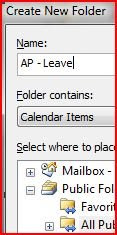
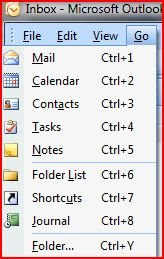 Once in Outlook open up the Folder List (Go -> Folder List) to see the public Folders (it's at the bottom). You should see the new folder created (in our case Absence Calendars). Right click on the Absence Calendars public folder and go to Create New Folder. In the Create New Folder dialog Choose Calendar Items and a name (I chose AP - Leave).
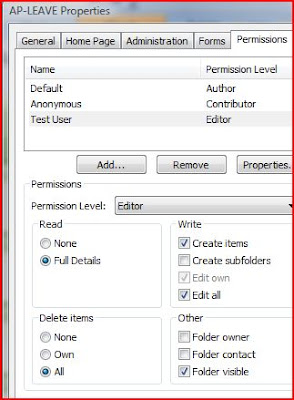
Now, right click on the new Calendar you just created and select "Change Sharing Permissions...". I usually set the department manager as the Editor and set everybody else to Author. This gives employees the ability to add items to the Calendar and allows the Manager to add / delete all the items. You may want to lock this down further by only allowing the employee's the ability to see the calendar and have the manager add all items once approved. In this case you should set the Default to Reviewer, Anonymous to None, and Manager(s) to Editor.
New-PublicFolder -Name 'Absence Calendars' -Path '\' -Server 'mbx01.company.com'
New-PublicFolder -Name 'Accounts Payable' -Path '\Absence Calendars' -Server 'mbx01.company.com'
Add-PublicFolderClientPermission -User username -AccessRights owner -Identity "\Absence Calendars\Accounts Payable"
 Once in Outlook open up the Folder List (Go -> Folder List) to see the public Folders (it's at the bottom). You should see the new folder created (in our case Absence Calendars). Right click on the Absence Calendars public folder and go to Create New Folder. In the Create New Folder dialog Choose Calendar Items and a name (I chose AP - Leave).
Now, right click on the new Calendar you just created and select "Change Sharing Permissions...". I usually set the department manager as the Editor and set everybody else to Author. This gives employees the ability to add items to the Calendar and allows the Manager to add / delete all the items. You may want to lock this down further by only allowing the employee's the ability to see the calendar and have the manager add all items once approved. In this case you should set the Default to Reviewer, Anonymous to None, and Manager(s) to Editor.

Monday, January 19, 2009
Exchange 2007 - Blackberry Enterprise Server (BES) Setup
Here are a couple things I had to do to get the Blackberry Enterprise Server (BES) running with Exchange 2007. This stuff wasn't clear in the install guide. Especially number 1 below.
1. Give the BESAdmin account permission on my exchange databases. I had to do it on all of our databases. Here's the command for Database07
2. Give the BESAdmin account extended rights
3. Add the BESAdmin to the Exchange View Only Administrators Group in Active Directory.
1. Give the BESAdmin account permission on my exchange databases. I had to do it on all of our databases. Here's the command for Database07
add-adpermission -user BESAdmin –identity “Database07” -accessrights GenericRead, GenericWrite -extendedrights Send-As, Receive-As, ms-Exch-Store-Admin
2. Give the BESAdmin account extended rights
Add-ADPermission -Identity "BESAdmin" -User "BESAdmin" -AccessRights GenericRead,GenericWrite,ExtendedRight -extendedrights Send-As,Receive-As,Receive-As,ms-Exch-Store-Admin
3. Add the BESAdmin to the Exchange View Only Administrators Group in Active Directory.
Sunday, January 18, 2009
Powershell: Exchange 2007 - BES - Blackberry Enterprise Server
Here a quick little snippet from a script I run when setting up users for our BES (Blackberry Enterprise Server) environment with Exchange 2007. Essentially, the script is just giving the BESAdmin account Send-As permission on the AD Account. You could do this on your entire User OU in the domain, but for security purposes we've decided to only set the permission for the Blackberry users.
# Open the File of User Names and Put it in the Pipeline
$import = Import-Csv "NewBlackBerryAccounts.txt"
$domain = "mydomain.com"

# Loop Through the CSV File, creating accounts
$import | Foreach {
   # Set Vars
   $StrUserName = $_.Username

   $user = get-qaduser $StrUserName@$domain
   if($user) {
      $dn = $user.DN
      Add-ADPermission -Identity $dn -User 'mydomain\BESAdmin' -ExtendedRights 'Send-as'
   } else {
      write-host Username $_.Username not found
   }
}
Tuesday, November 11, 2008
Powershell Progress Bar with Time Countdown
I needed to add a 15 minute pause in a script that we were using to create exchange mailboxes and this little Powershell progress bar with a countdown timer worked really nice.
###===========================
### Pause Program for 15 min
### - Matt Brown, 2008
###===========================
$x = 15*60
$length = $x / 100
while($x -gt 0) {
  $min = [int](([string]($x/60)).split('.')[0])
  $text = " " + $min + " minutes " + ($x % 60) + " seconds left"
  Write-Progress "Pausing Script" -status $text -perc ($x/$length)
  start-sleep -s 1
  $x--
}
Thursday, November 6, 2008
Powershell: Monitor IIS Application Pool or Site
We have an exchange IIS Application Pool stopping every so often because of some Entourage client problems. It would cause the Application Pool to stop and therefore break owa access, which was a problem.
So while we are working with Microsoft on a permanent solution I quickly put together a powershell script to run every 30 seconds and check the state of the application pool. If the MSExchangeOWAAppPool is stopped, then the script starts it. It uses the IIS Provider Tools snapin for powershell.
So while we are working with Microsoft on a permanent solution I quickly put together a powershell script to run every 30 seconds and check the state of the application pool. If the MSExchangeOWAAppPool is stopped, then the script starts it. It uses the IIS Provider Tools snapin for powershell.
### -----------------------------------------------
### Written by Matt Brown - 12:46 PM 11/3/2008
### Powershell script to check MSExchangeOWAAppPool
### Requires IIS Administration Provider Tools
### -----------------------------------------------

### Make sure Snapin is loaded
$add = 1
get-PSSnapin * | foreach {
 if($_.Name -match 'IIsProviderSnapIn') {
  $add = 0
 }
}
if($add) {
 add-PSSnapin IIsProviderSnapIn
}

#######################################
######## Check AppPool State ##########
#######################################
Write-Host "`n"
Write-Host "#####################################"
Write-Host "Running check on MSExchangeOWAAppPool"
Write-Host "#####################################"
while($true) {

 $state = Get-WebItemState IIS:\AppPools\MSExchangeOWAAppPool
 if($state -eq "Stopped") {
  Start-WebItem IIS:\AppPools\MSExchangeOWAAppPool
  $now = Get-Date –f "yyyy-MM-dd HH:mm:ss"
  $MsgBody = "CAS01 AppPool needed a restart " + $now
  Write-Host $MsgBody
 }
 Start-Sleep -s 30
}
Wednesday, November 5, 2008
Powershell: New Active Directory Objects Report
Here's a quick Powershell script to send you a report of the most recent additions to Active Directory.
### --------------------------------------------
### Written by Matt Brown - 12:13 PM 10/22/2008
###
### AD Report on new objects created in the
### last 24 hours
### Requires Quest Powershell extenstions for AD
### --------------------------------------------

#######################################
####### Load Required Snapin's ########
#######################################
## Add Quest AD Snapin Tool
$addAD = 1
get-PSSnapin * | foreach {
  if($_.Name -match 'quest.activeroles.admanagement') {
    $addAD = 0
  }
}
if($addAD) { add-PSSnapin quest.activeroles.admanagement }

#######################################
########### Setup Log File ############
#######################################
$Today=get-date
$filename="NewADObjects_"+($Today.year).ToString()+"_"
$filename+=($Today.month).ToString()+"_"+($Today.day).ToString()+".txt"

#######################################
### Get AD Formated Date 24 hrs ago ###
#######################################
$currentDate = [System.DateTime]::Now
$currentDateUtc = $currentDate.ToUniversalTime()
$creationDate = $currentDateUtc.AddHours(- 24)
$YYYY = $creationDate.Year.ToString()
$MM = $creationDate.Month.ToString();
if ($MM.Length -eq 1) {$MM="0" + $MM};
$DD = $creationDate.Day.ToString();
if ($DD.Length -eq 1) {$DD="0" + $DD};
$creationDateStr = $YYYY + $MM + $DD + '000000.0Z'

$MsgBody = "###################`n"
$MsgBody += " New AD Objects`n"
$MsgBody += "###################`n`n"

write-host $creationDateStr
$newobjects = Get-QADObject -ldapfilter "(whenCreated>=$creationDateStr)"
                -SizeLimit 30000 | sort type

if($newobjects) {
  $newobjects | out-file $filename
  $type = ""
  $newobjects | foreach {
    if($_.Type -eq $type) {
      $MsgBody += " " + $_.Name + "`n"
    } else {
      $type = $_.Type
      $MsgBody += "`nNew " + $_.Type + "(s)`n"
      $MsgBody += "===================================`n"
      $MsgBody += " " + $_.Name + "`n"
    }
  }
}

#######################################
############ Email Report #############
#######################################

function SendEmail($body) {
  $message = New-Object System.Net.Mail.MailMessage
  $message.From = "myemail@domain.com"
  $message.To.Add("myeamail@domain.com")
  $message.Subject = "Active Directory - new object report"
  $message.Body = $body

  $smtp = New-Object System.net.Mail.SmtpClient
  $smtp.Host = "smtp.mailserver.com"
  $smtp.UseDefaultCredentials = $true
  $smtp.Send($message)
}

SendEmail($MsgBody)
Tuesday, November 4, 2008
Update GAL Display Name - powershell
We recently decided to change on how our Global Address list is displayed from using the format to the , format.
Powershell made quick work of this task and took about 10 minutes with 2500 users. Here's the script.
Don't forget to update the OAB after this is done so your outlook clients will update.
Powershell made quick work of this task and took about 10 minutes with 2500 users. Here's the script.
###=====================================
### Update Exchange Global Address List Display
### - Matt Brown, 2008
###=====================================
$Users = Get-User -ResultSize unlimited |
 where {
   ($_.RecipientTypeDetails -eq "MailUser")
   -or ($_.RecipientTypeDetails -eq "UserMailbox")
 }

ForEach ($Person in $Users) {
   $NewName = $User.LastName + ", "
   $NewName += $User.FirstName + " "
   $NewName += $user.Initials

   # get rid of trailing spaces caused by blank initials
   $NewName = $NewName.Trim()
   Set-User $User -Name $NewName -DisplayName $NewName
   $NewName = $Null
}
Don't forget to update the OAB after this is done so your outlook clients will update.
Wednesday, September 17, 2008
Create Active Directory Users with Powershell
Here's a quick little script I wrote to create users in Active Directory using Powershell and the Quest extensions for AD.
---- Start Script CreateUsers.ps1 ----
### -----------------------------------------------------------------
### Written by Matt Brown - 12:13 PM 9/17/2008
###
### Powershell script requires a text file with the following fields
### Name,sAMAccountName,First,Last
### Brad,Bradley.J.Pitt,Brad,Pitt
###
### Requires Quest Powershell extenstions for AD
### -----------------------------------------------------------------
# Open the File of User Names and Put it in the Pipeline
Import-Csv "NewAccounts.txt" |
# Loop Through the CSV File, creating accounts
Foreach {
# Set Vars
$StrName = $_.Name
$StrSAMAccountName = $_.sAMAccountName
$StrFirst = $_.First
$StrLast = $_.Last
# Send vars to screen (1 line below)
write-Host "Creating User Account: $StrSAMAccountName - $StrName - $StrFirst - $StrLast"
# Create Account (1 line below)
New-QADUser -ParentContainer "OU=NewAccounts,dc=mydomain,dc=com" -Name $StrName -FirstName $StrFirst -LastName $StrLast -SamAccountName $StrSAMAccountName -DisplayName $StrName -Description "Training Account." -UserPassword 'P@ssword' -UserPrincipalName "$StrSAMAccountName@domain.edu" | Enable-QADUser
}
---- End Script CreateUsers.ps1 ----
And below is the text file used to create the accounts. Run this using the Quest Powershell extensions for AD and you'll be good to go.
---- Start NewAccounts.txt ----
Name,sAMAccountName,First,Last
Brad,BradleyJamesPitt,Brad,Pitt
---- End NewAccounts.txt ----
---- Start Script CreateUsers.ps1 ----
### -----------------------------------------------------------------
### Written by Matt Brown - 12:13 PM 9/17/2008
###
### Powershell script requires a text file with the following fields
### Name,sAMAccountName,First,Last
### Brad,Bradley.J.Pitt,Brad,Pitt
###
### Requires Quest Powershell extenstions for AD
### -----------------------------------------------------------------
# Open the File of User Names and Put it in the Pipeline
Import-Csv "NewAccounts.txt" |
# Loop Through the CSV File, creating accounts
Foreach {
# Set Vars
$StrName = $_.Name
$StrSAMAccountName = $_.sAMAccountName
$StrFirst = $_.First
$StrLast = $_.Last
# Send vars to screen (1 line below)
write-Host "Creating User Account: $StrSAMAccountName - $StrName - $StrFirst - $StrLast"
# Create Account (1 line below)
New-QADUser -ParentContainer "OU=NewAccounts,dc=mydomain,dc=com" -Name $StrName -FirstName $StrFirst -LastName $StrLast -SamAccountName $StrSAMAccountName -DisplayName $StrName -Description "Training Account." -UserPassword 'P@ssword' -UserPrincipalName "$StrSAMAccountName@domain.edu" | Enable-QADUser
}
---- End Script CreateUsers.ps1 ----
And below is the text file used to create the accounts. Run this using the Quest Powershell extensions for AD and you'll be good to go.
---- Start NewAccounts.txt ----
Name,sAMAccountName,First,Last
Brad,BradleyJamesPitt,Brad,Pitt
---- End NewAccounts.txt ----
Subscribe to:
Posts (Atom)